proofreading

  • Edward Bear Shares More Proofreading Secrets

    Mr. Edward Bear (pseudonym) shared an awesome secret for sussing out quote issues in a previous post. He’s back with a nifty way to help spot spelling issues.  It helped me spot a number of inconsistencies in Bad Penny, which I recently fixed. Take it away, Mr. Bear.

    * * * *

    Augmented Proofreading 2

    Last time, I mentioned checking spelling and spelling consistency, and this note is to fulfill my promise.

    To begin with, I’ll admit freely I do not recommend just running a spieling chucker over the text. And yes, I’m using the phrase deliberately. The spelling checker in the program I’m using to write this just waltzed right past it, despite the fact that neither word makes sense in this context. I got started trying to get some mileage out of spelling checkers a while back, when I realized that OCR scanners will work like hell trying to find a word and probably will come up with a word, but it will be the wrong word. Over at Project Gutenberg, they use the term “scanos” as an analogue of “typos.”

    The other adversary is consistency of spelling and usage. Examples might include “canceled” and “cancelled” or variant possessives, such as “Jones’” and “Jones’s” in the same text, or simply variant spellings of the same character’s name, such as “Erik” and “Eric.”

    So what do I do for these sorts of problems?

    What you need is a list of all the unique words in the story, and it’s easy with a dollop of regex. (See the first post on this topic. The one I’ve taken to using is the following:

    [^-‘‘’\w\d\r\n]

    This one I can explain, since I wrote it. 🙂

    What it says is to look for any individual characters within the brackets([]). The leading caret (^) says “Nope, they should not be in this list.” Following that are the hyphen(-), the straight  quote(‘), and the opening and closing curly single quotes(‘’). After that, it’s any character that would normally be in a word (\w), any digit (\d), any carriage return(\r) or any new line aka paragraph terminator (\n).

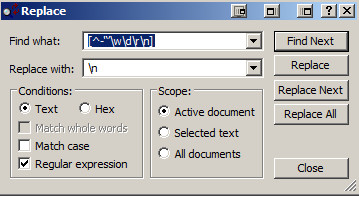
    And what you do with the above is to set Textpad (see previous post again) to replace all of them with a newline (\n) character.

    Here’s what the search and replace box in Textpad looks like for this:
    Augmented Proofreading image001


    Notice that the “Regular expression” box is checked. And then you choose “Replace All”.

    The result is to turn this:

    Once upon a night we’ll wake to the carnival of life
    The beauty of this ride ahead such an incredible high
    It’s hard to light a candle, easy to curse the dark instead
    This moment the dawn of humanity
    The last ride of the day

    into this:

    Once
    upon
    a
    night
    we’ll
    wake
    to
    the
    carnival
    of
    life
    The
    beauty
    of
    this
    ride
    ahead
    such
    an
    incredible
    high
    It’s
    hard
    to
    light
    a
    candle

    easy
    to
    curse
    the
    dark
    instead
    This
    moment
    the
    dawn
    of
    humanity
    The
    last
    ride
    of
    the
    day


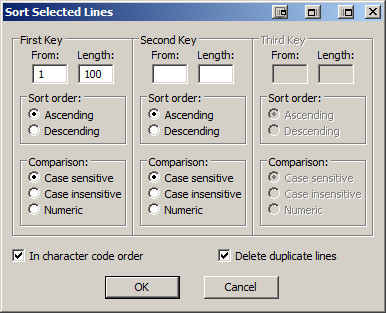
    For a book, this means what you have as a multi-thousand line long document and LOTS of repeated words. The next step is to lose the repetitions by sorting the list. For TextPad,  you’ll find Tools->Sort on the menu bar, and I generally set the sort up as the following:
    Augmented Proofreading image002

    This is a case-sensitive sort and “Delete duplicate lines”, of course, gets rid of all the duplications of words like “a”, “an”, and “the”.

    For the above text, you get:

    It’s
    Once
    The
    This
    a
    ahead
    an
    beauty
    candle
    carnival
    curse
    dark
    dawn
    day
    easy
    hard
    high
    humanity
    incredible
    instead
    last
    life
    light
    moment
    night
    of
    ride
    such
    the
    this
    to
    upon
    wake
    we’ll

    34 unique words.

    And here’s the payoff for all this funky text munging: Run a spelling checker over this, and it will find typos, of course, but it will also generally complain about most names, which aren’t generally kept in spelling checker dictionaries, and it will also show you words and their variants, nestled fairly closely together. Here’s an example from one of my projects:

    Swiss-born
    Take
    Talking
    Tallmadge
    Tallmadge’s
    Tarelton
    Tarleton
    Tarleton’s
    Tavern
    Tecumseh
    Tell
    Ten
    Thames

    The spelling checker landed on Tallmadge and its possessive form, but do you notice the “Tarelton” on the list? That’s the time for the Aha!, and you can fix the “Tarelton” form. The same thing applies to possessive variants and any other variant form you find.

    As with the last post, I’ll be peeking in on the comments and answering any questions that come up.
  • Edward Bear Shares His Proofreading Secrets

    One of the things I enjoy about being an author are the emails I receive from readers. A few months ago I received one from Mr. Edward Bear. He’d purchased Servant and, as he was reading, found an unclosed dialogue quote.

    Mr. Bear could have simply noted it and read on. But he did not. Mr. Bear is a proofreader. And so he practiced a bit of wizardry, found that I had a handful of quote goofs, and emailed them to me.

    Many of them ended up being weird smart quote issues Word introduced into the text when I broke a line of dialogue with an action like this: “You will not”–he scratched his nose angrily–“share another pair of my panty hose with that woman!”

    You’d think that would be enough for a doughty reader. But Mr. Bear didn’t just notify me of the errors. Oh, no. He also included the page from his proofreader’s grimoire that allowed him to find those quote issues in a matter of minutes in the first place.

    As soon as I had the time, I tested the spell on Bad Penny, and, voila, in a matter of a few minutes found a couple of issues in that text. I was delighted.

    But Mr. Bear wasn’t satisfied with mere delight. He then sent me another page from that grimoire to help with spelling. We luvs wizardly readers, Precious.

    Copy editing and proofreading require patience, painstaking reading, and a knowledge of what to look for. You have to know not only the mechanics of the written word (capitalization, spelling grammar, syntax, punctuation, abbreviations, usage, etc.) but also, if you’re reading for a printed edition, interior formatting (widows, orphans, word or hyphen stacks, headers, and so forth). There’s a lot to it. And anything that speeds up the process and minimizes errors is welcome.

    If you’re contracting your proofreading out, a cleaner copy can also translate into lower rates. Knowing that many of you who visit this website are writers, and because your host’s generosity knows no bounds, I asked Mr. Bear if he might be willing to share his wizardry with you. The wizard responded with a yes.

    Augmented Proofreading 1

    By Edward Bear I’m Ed Bear. I work, both professionally and otherwise, as a proofreader. I’ve gone over books for my publisher and I’ve done scan/OCR/check against paper books for republication, both electronic and back-to-treeware. When I mentioned some of the “ancillary tools” I have for aiding the work, John offered me this guest post slot in his blog. Feel free to pass this stuff around. I’ve found these techniques invaluable in getting the job done faster, and with better quality.

    First, though, I need to tell you about the tools themselves. The biggest component is the software for electronic text editing. However, I’m NOT talking Word or anything like that. I’m talking about an editing program which can a: work with plain text and b: handle Regular Expressions. (What are those, some of you ask? I’ll get to that.)

    Since I’m a windows user, I have two such programs available. My favorite is a program called TextPad (www.textpad.com).  I’ve used it for years and it’s become invaluable to my work. They currently charge $28 for a single user license, but IMO, the program’s so useful that, even though upgrades are free, I buy another license every time they bring out a new major release. The other program is free. It’s called NotePad++ (http://notepad-plus-plus.org/) I’ve tested it and it can handle the methods I use, but I haven’t used it much, since TextPad and I are long-time buddies. If anybody out there knows a program for the Macintosh which will do these jobs, please mention it in the comments.

    Regular Expressions

    You don’t have to be a wizard to use them. The tutorial over at http://www.regular-expressions.info/tutorial.html describes them elegantly:  “Basically, a regular expression is a pattern describing a certain amount of text.”  They are also called a regexp or regex, and I’ll be including the regexes I use in this post.

    I have a small library of regexes, and two of them are critical to aiding the proofreading process. One of them allows checking dialogue quotemarks, to insure that speech is properly closed off, and the other makes it possible to generate a word list of each unique word in the  book. I’ll be walking through the usage, including screenshots.

    Quote Checking

    One of the challenges of checking dialogue passages is that, with one exception, every opening quote (“) needs to have its matching closing quote (”). The exception, of course, is when the same character is speaking in the next paragraph. This can lead to a heavy false positive load if the characters are loquacious.

    The first time I tried this stunt, I found  73 paragraphs with unbalanced quotes. Only 6 of them were errors. But being able to find them quickly so they could be fixed in minutes instead of hours? That paid for the effort.

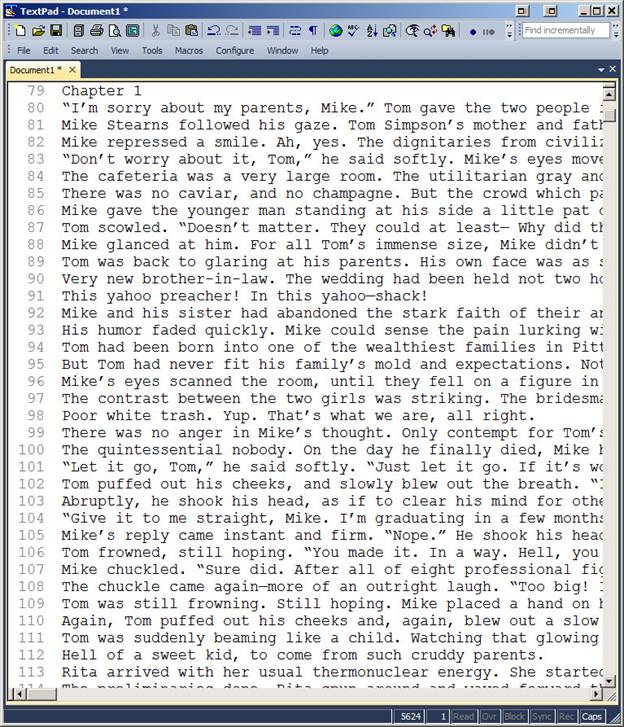
    The process itself is simple: You take the document and convert it to plain text. If it’s an RTF or Word document, you simply select ALL, hit copy, and paste it into Textpad.  The result will look something like this:

    image001

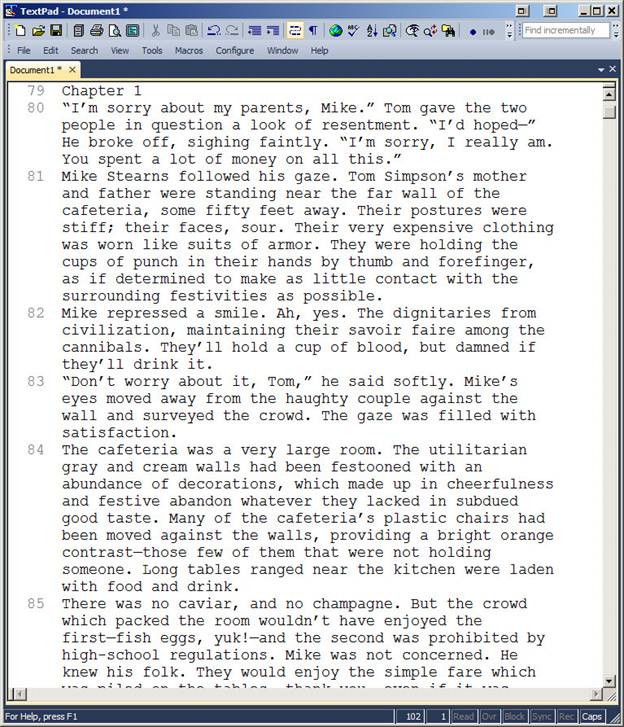
    What I normally do is turn on word wrap, so I can see the whole paragraphs as I go. So it looks like this:

    image002

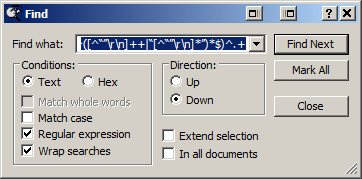
    Now, we go hunting. The next step is to set up the search pattern using a regex. The one I use for this is the following: (?!^([^“”\r\n]++|“[^“”\r\n]*”)*$)^.+ Complicated little brute, isn’t it. I didn’t write it, but I knew who to ask if he could write one, and the above is the result. FYI, there’s also one for straight quotes: (?!^([^”\r\n]++|”[^”\r\n]*”)*$)^.+ You use it the same way. So go into find, and put the regex into the “Find what:” box:

    image003

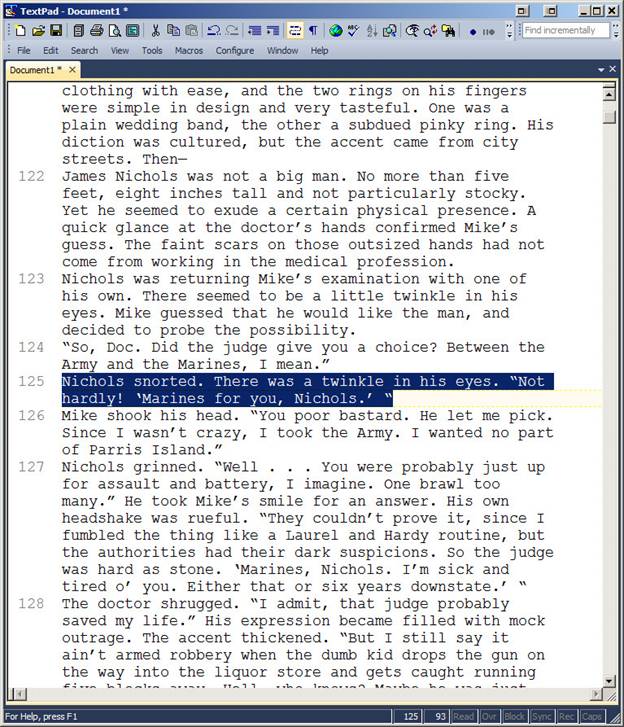
    Notice that the “Regular expression” box is checked. I also “Wrap searches” just in case I miss something and want to loop around. Click “Find Next” and:

    image004

    The paragraph highlighted has two opening quotes, one at the beginning and one at the end. Word assumes that a quote preceded by a space is an opening quote, so you need to correct it in your RTF/DOC. Wash, rinse, repeat. You keep doing “find next” all the way through, checking for situations like the following:

    image005

    As I said, same speaker, next paragraph, so this one is good. This post is getting a little long for a blog entry, what with illustrations, so I’ll break off here. Stay tuned for part two: checking spelling and spelling consistency. In the meantime, here are the RegEx tool commands plus a few bonus goodies: RegExToolCommands.